Practice for the pre-employment Excel test
Not sure which test you have? A mixed mock that covers the common ground.
Our practice replicates common formats, not any employer's actual content.
Our mock
| Mock | Items | Type | Timer | Scoring |
|---|---|---|---|---|
| General employment test | 25 | Mixed hands-on and multiple choice | 30 minutes | Percent with section breakdown |
What this test usually is
Plenty of invitations just say “Excel assessment” and nothing else. That is fine. Most pre-employment Excel tests draw from the same pool of skills: entering and formatting data, sorting and filtering, SUM and AVERAGE, IF, COUNTIF and SUMIF, and a lookup or two. The differences are mostly in format and timing.
If you can find out who sent the test, do. A staffing agency, an employer’s HR team and a hiring manager tend to use different kinds of test, and our test picker will ask you exactly that.
Why the sender matters
A test sent by a staffing agency, one sent by an employer’s HR team and one handed over by a hiring manager can all be called an Excel assessment and still differ in length, item type and timing. That is why the picker asks who sent it before it asks anything about your skills. If the sender named a provider, go to that provider’s page from the list of practice tests; each one says what we know about its format and what we had to choose ourselves.
How to prepare
- Answer the four picker questions (who sent it, what the email called it, the role, and whether it is timed). We map that to the closest format and show you why.
- Take the free sampler for that format.
- Fill gaps with lessons. Excel from Zero is free; Everyday Excel covers most of what intermediate tests ask.
- Take this general mock as a dress rehearsal: mixed item types under a 30-minute clock.
What our mock does and does not do
This mock covers common ground rather than one provider’s format. Every item is our own. If you later find out which test you are taking, switch to that format’s page.
Skills to practice
- SUM The base skill. Use ranges, and know that SUM ignores text.
- AVERAGE Ignores blanks and text but counts zeros.
- IF Labels rows with a test. Put text results in quotation marks.
- COUNTIF Counts rows that match one condition. SUMIF is the version that adds a second column.
- VLOOKUP The lookup most employer tests mention. FALSE as the last argument asks for an exact match.
- SORT Orders a list without touching the original, in Microsoft 365 and Excel 2021. The older Data tab Sort button reorders in place.
- SUMIF Adds the amounts in one column where another column matches a label. SUMIFS does the same with several conditions, and its first argument is the range to add.
- COUNTIFS Counts rows that meet two or more conditions at once, for example one department and an amount above a limit. Each condition is a range and a test, in pairs.
3 sample items with answers
1. Count the rows where the department is Sales and the amount is over 500.
| A | B | C | D | |
|---|---|---|---|---|
| 1 | Dept | Amount | ||
| 2 | Sales | 650 | 2 | |
| 3 | Ops | 800 | ||
| 4 | Sales | 300 | ||
| 5 | Sales | 900 | ||
| 6 | Ops | 200 |
COUNTIFS applies both conditions at once. Only two rows are Sales with an amount over 500, the 650 and the 900, so the answer is 2.
2. Add up the Travel expenses.
| A | B | C | D | |
|---|---|---|---|---|
| 1 | Category | Amount | ||
| 2 | Travel | 120 | 200 | |
| 3 | Meals | 45 | ||
| 4 | Travel | 80 |
SUMIF checks each label in A2:A4 for Travel and adds the matching amounts from B2:B4: 120 plus 80 is 200. The Meals row is skipped.
3. Average the scores when one student has no score yet.
| A | B | C | D | |
|---|---|---|---|---|
| 1 | Student | Score | ||
| 2 | Ana | 80 | 70 | |
| 3 | Ben | |||
| 4 | Chloe | 60 |
AVERAGE skips the empty cell, so it adds 80 and 60 and divides by two, which gives 70. If the empty cell held a 0 instead, the average would drop to 46.67, so a blank and a zero are not the same.
Free sampler
Five items in this format, scored like the full mock, with a skill-by-skill report at the end. No account needed.
Start the sampler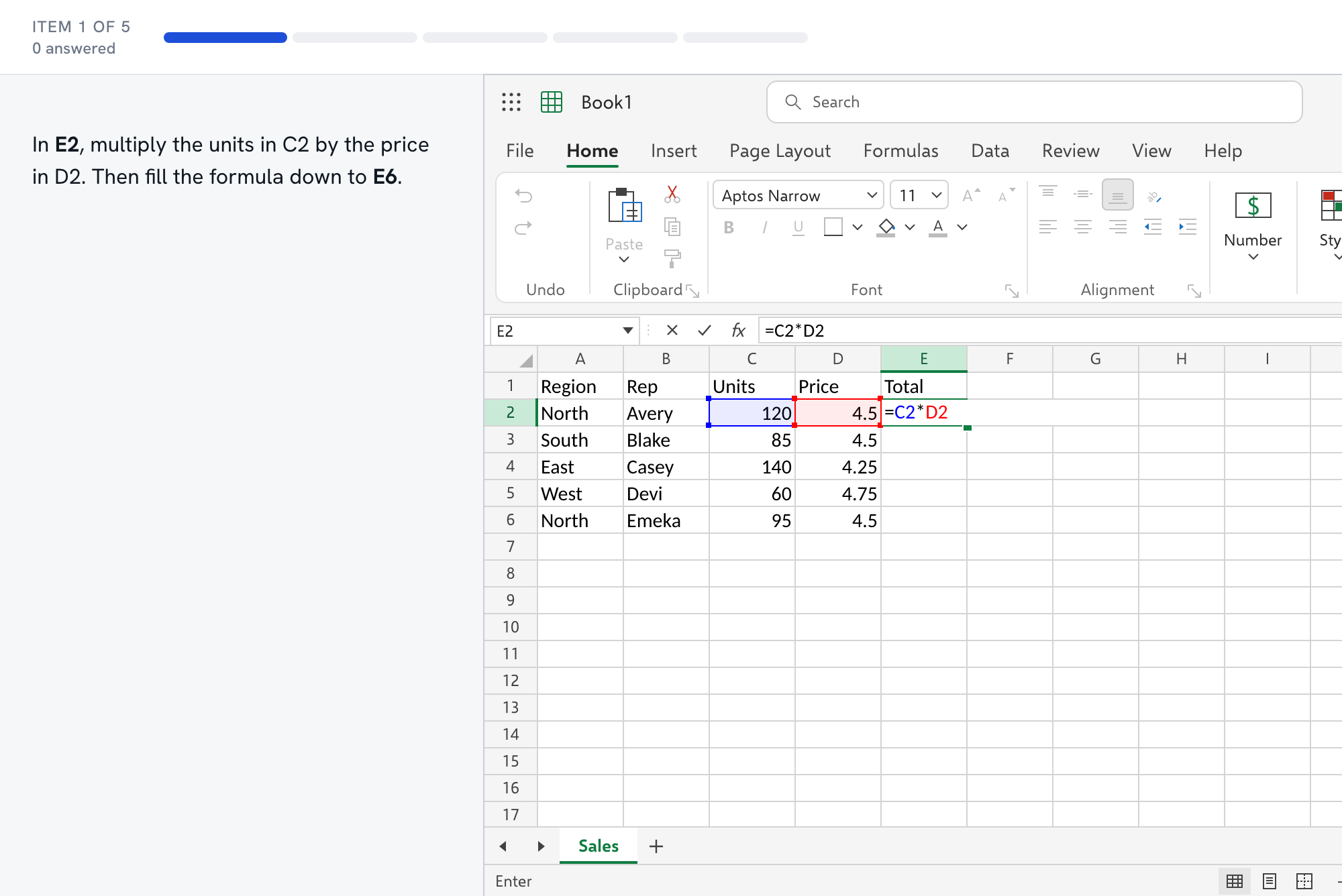
Questions about the Not sure which test test
- What does the 25-item general mock look like?
- The table at the top of this page lists the item count, the item types, the timer and the scoring. It mixes hands-on tasks and multiple choice under a clock, and the report breaks your result down by skill.
- How does the test picker choose a format?
- It asks four short questions: who sent the test, what the invitation called it, the role, and whether it is timed. It maps your answers to the closest format we have and shows the reason.
- I only know it says Excel assessment. Where do I start?
- Take the free sampler, read the skill breakdown, and spend your first evenings on the two lowest areas. The skills nearly every format shares are in the list above.
- Is the score a prediction?
- No. The band (likely pass, borderline or not yet) is our estimate from our own items. It helps you decide whether to practice more, and it is not the provider's scoring.
- What is free and what needs Full Access?
- The sampler is free and needs no account. Excel from Zero is free in full, and so are the first two lessons of every other module. The full mock and the remaining lessons are part of Full Access.